Seller Page Banner Image Guidelines
What is a Seller Page Banner Image?
The Seller Page Banner Image appears at the top of your seller profile and visually represents your brand or products.
This banner is visible to buyers on both desktop and mobile devices.
Because screen sizes differ, the banner is automatically cropped depending on the device. This is expected behavior.
Recommended Banner Image Size
To ensure your banner looks good across all devices, follow these requirements:
PropertyRequirementRecommended size1600 × 600 pxAspect ratioLandscape (approx. 2.6:1)Minimum size1200 × 450 pxSupported formatsJPG, PNGMaximum file size3 MB
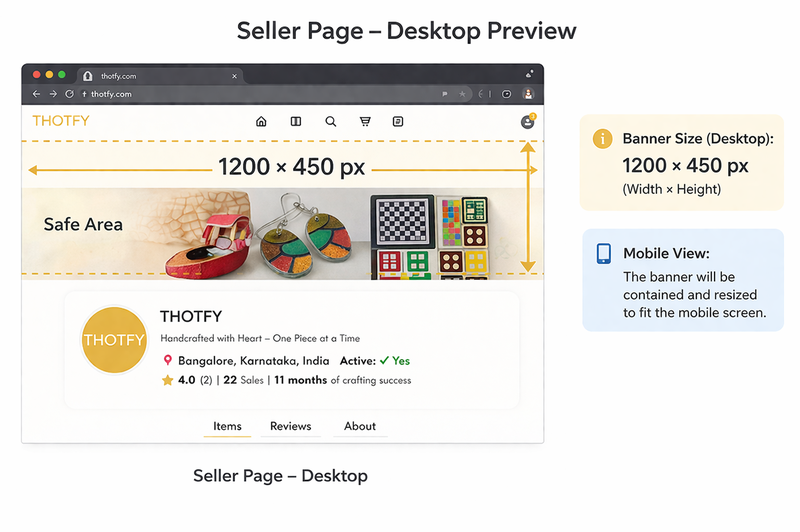
⚠️ Portrait or square images are not supported and will be heavily cropped.
How the Banner Appears on Different Devices
Desktop View
- Banner appears wide and horizontal
- More image area is visible
- Best suited for product photography and wide compositions
Mobile View
- Banner height is reduced
- Left and right edges may be cropped
- Only the center portion of the image is always visible
This cropping is automatic and cannot be disabled.
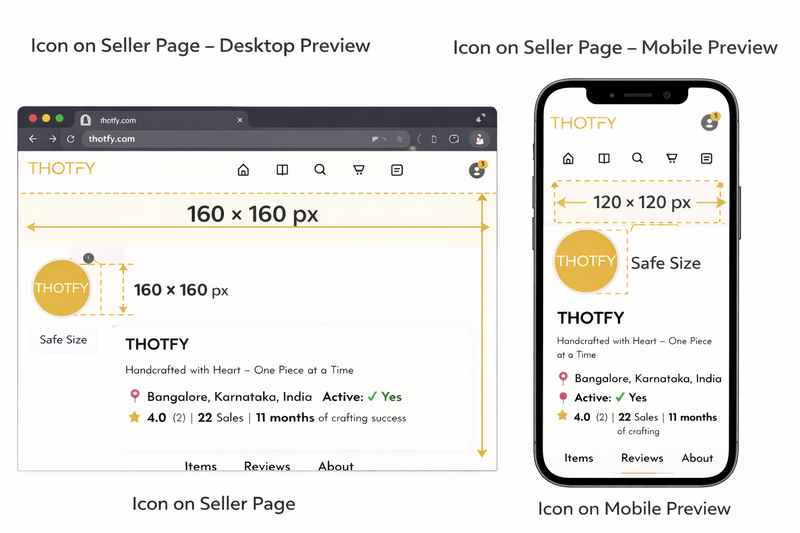
Safe Area Guidelines (Very Important)
To prevent important content from being cut off:
Always keep critical content within the center 60% of the image.
Safe to place in the center:
- Product images
- Main visual focus
- Brand imagery
Avoid placing near edges:
- Text
- Logos
- Faces
- Watermarks
If your banner depends on text near the edges, it is not designed correctly.
Recommended Banner Image Types
✔ Product-only images
✔ Flat-lay photography
✔ Clean, uncluttered backgrounds
✔ Well-lit, high-quality photos
Avoid These Banner Types
❌ Posters with heavy text
❌ Images with borders or frames
❌ Screenshots or collages
❌ Low-resolution or compressed images
Text-heavy banners often look broken on mobile.
How to Upload or Change Your Banner
On Desktop
- Go to your Seller Page
- Hover over the banner area
- Click the Camera icon
- Upload your image
- Save changes
On Mobile
- Open your Seller Page
- Tap Edit
- Tap Change Banner
- Upload your image
- Save changes
Common Issues & Solutions
Banner looks cropped on mobile
→ This is expected. Keep important content centered.
Image looks zoomed or cut off
→ Use a wider image and avoid tight framing.
Banner looks fine on desktop but bad on mobile
→ Redesign with mobile cropping in mind.
Final Checklist Before Uploading
- Image is landscape (not portrait or square)
- Important content is centered
- No text or logos near edges
- Looks good on both desktop and mobile
If your image fails any of these checks, update it before uploading.